Installing GNU Emacs for Windows
How can I install GNU Emacs for Windows?
Note:
Before installing GNU Emacs for Windows, be sure that you have a
compression/de-compression program capable of reading .TAR files.
A common program is WinZip, avaiable at
http://www.winzip.com/
or at
http://www.download.com/
. This FAQ demonstrates using WinZip.
- Using My Computer or Windows Explorer, open the folder to which you
saved the emacs-20.4-bin-i386.tgz file. Double-click the file.
You will see the following:
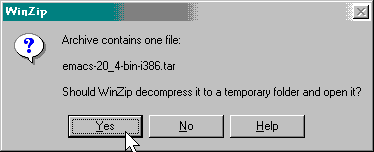
Answer "Yes" when prompted to decompress the file.
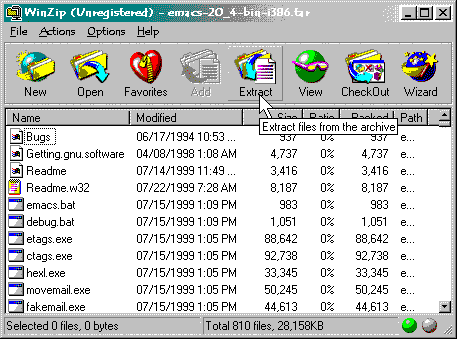
- When the WinZip window appears, click the "EXTRACT" button:
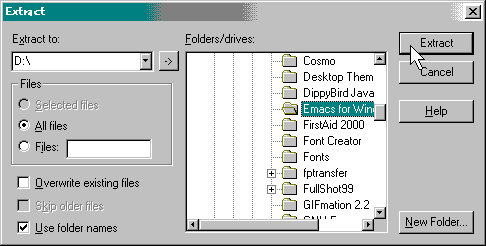
- In the "EXTRACT TO" field, enter the letter of your hard drive,
followed by a colon (":"), followed by a backslash ("\") and then
choose the "EXTRACT" button:
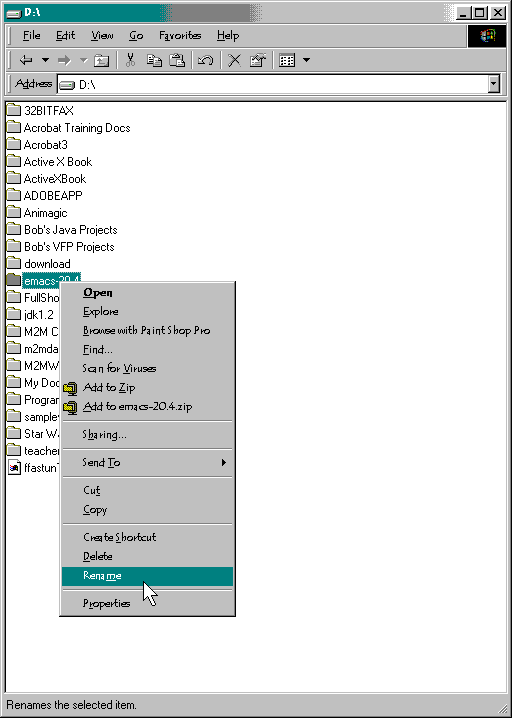
- A folder will be created off the root directory of your hard
drive called "emacs-20.7". Rename the folder to "emacs" by
highlighting the folder, clicking the secondary (usually right)
mouse button and choosing "RENAME" from the pop-up menu:
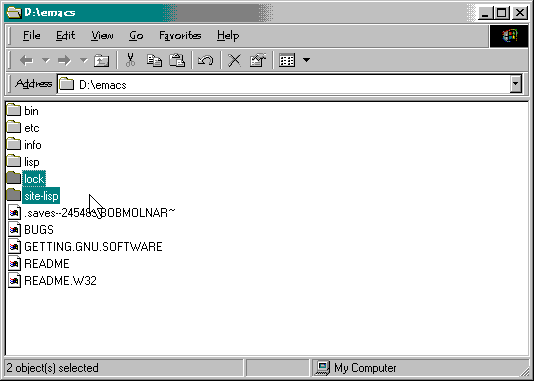
- Open the folder "EMACS" and then create the site-lisp
and lock sub-folders by going to the File Menu and then
choosing "NEW ... FOLDER":
- Close all programs, shut down your computer and then re-start it.
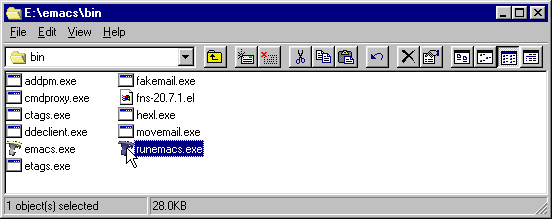
- If you want to make a shortcut on the desktop for Emacs, open the
C:\emacs\bin\ folder (where c:\ is the letter of your
hard-drive). Right click and HOLD on the runemacs.exe icon:
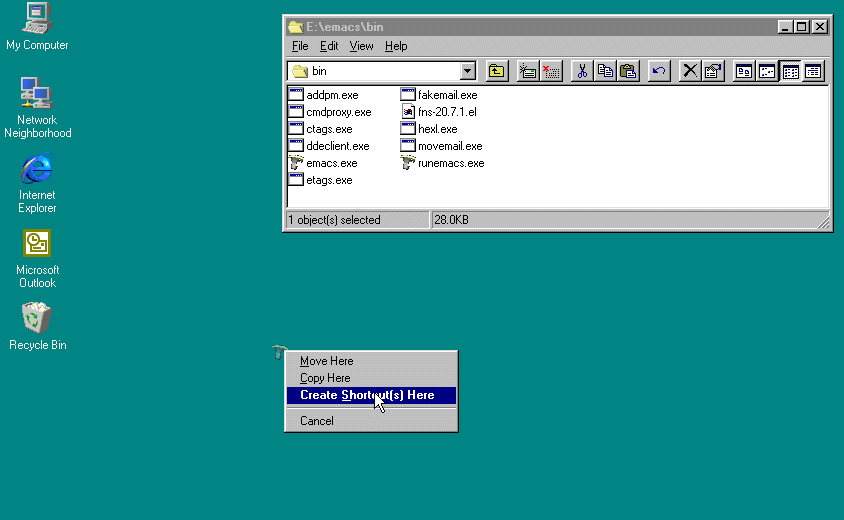
- As you are right-clicking and HOLDING the runemacs.exe icon,
drag the icon to the Desktop. Realease the mouse. You will see a
shorcut menu. Choose "Create Shortcut(s) Here" from the
shortcut menu. You can rename the shortcut "Emacs", if you like:
© 2002, Department of Computer Science
Indiana University-Purdue University Indianapolis
E-mail:
mailto:admissions@cs.iupui.edu
Home Page:
http://www.cs.iupui.edu/